
A category is a set of same-type posts that go out on their own schedule. For example, "Monday Motivation" every Monday at 8:00, or "Question of the Day" daily at 18:00.
Category posts are published in parallel with regular posts. While your main content goes out on the channel's general schedule, the category has its own separate timetable.
How to create a template for a category
- Tap
Settingsor send the/settingscommand. - Choose
New template. - Specify the channel for the category.
- Set up the post formatting, then tap
Category.
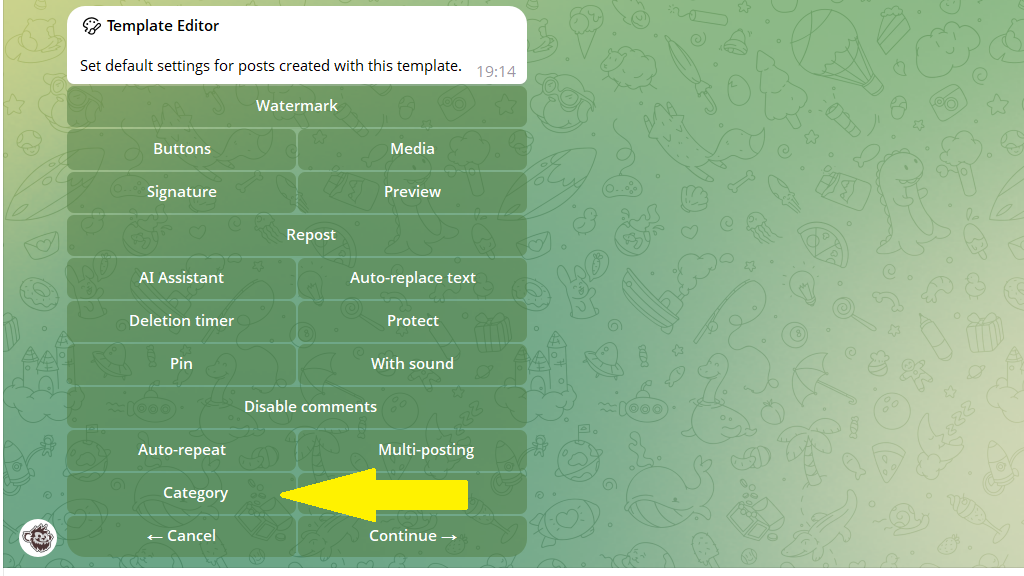
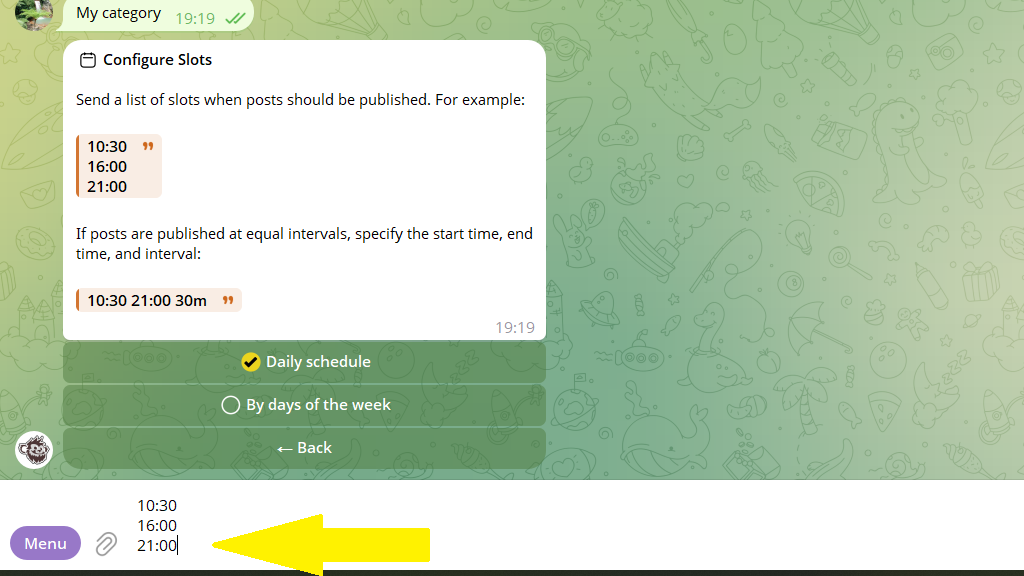
5. Choose a category from the list or create a new one:
- Tap
New categoryand send its name. - Send the schedule for the category's posts.
6. Save the template and give it a clear name.
Naming tip: use descriptive names like "Morning Motivation 8:00" or "Friday Tips". That way you'll easily find the template you need among the others.
How to publish category posts
Once the template is created, publishing becomes effortless:
- In the post editor, choose the category template.
- Turn on the
Turbo modecheckbox. - Forward your ready posts to the bot.
That's it! The posts are automatically distributed across the nearest slots in the category's schedule.
Example
Imagine you run a business channel. You want to publish:
- Main content: 3 times a day at 9:00, 15:00, and 20:00
- A "Tip of the Day" category: every weekday at 7:30
- A "Book of the Week" category: on Sundays at 12:00
You create two separate category templates, each with its own publication time. Now you can:
- Upload the main content on the general schedule
- Prepare a batch of tips and publish them via the "Tip of the Day" template
- Add a book review once a week via the "Book of the Week" template
Each type of post goes out strictly at its own time, with no overlaps.
Managing categories
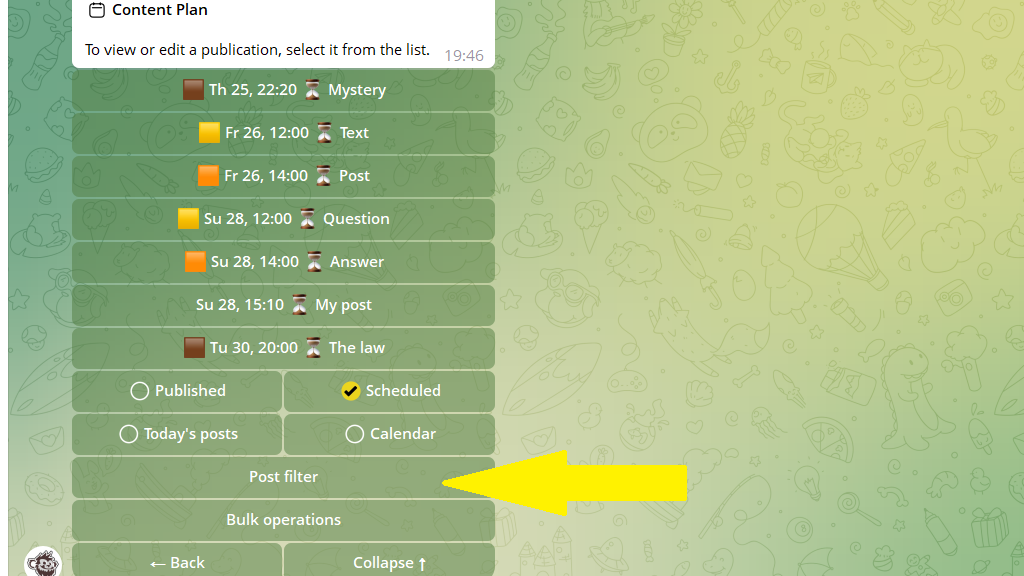
In the content plan, category posts are marked with colored emoji — they're easy to tell apart from regular posts.
For bulk operations on category posts, use the filter in bulk operations: you can shift the publication time of all the category's posts or delete them all at once.
Important: one time can belong to only one category. If you create a category on a time that's already taken, the old category loses that time in its schedule.
