
When you create regular posts, the bot automatically adds the signature, buttons, and other standard channel settings. But with ad posts it's different — there you don't need your own buttons and signature. To keep the settings for regular and ad posts from getting mixed up, the bot provides a separate interface for each type.
Creating an ad post
- In the bottom menu, tap
Ad post. - Send the creative and set up the post formatting.
To add a URL button, just send the bot a link in the format Button - https://link.com
You don't have to tap URL buttons specially.
3. Choose the placement format:
1/24 — 1 hour at the top, auto-delete after 24 hours
2/48 — 2 hours at the top, auto-delete after 48 hours
3/72 — 3 hours at the top, delete after 72 hours (the bot will send a reminder)
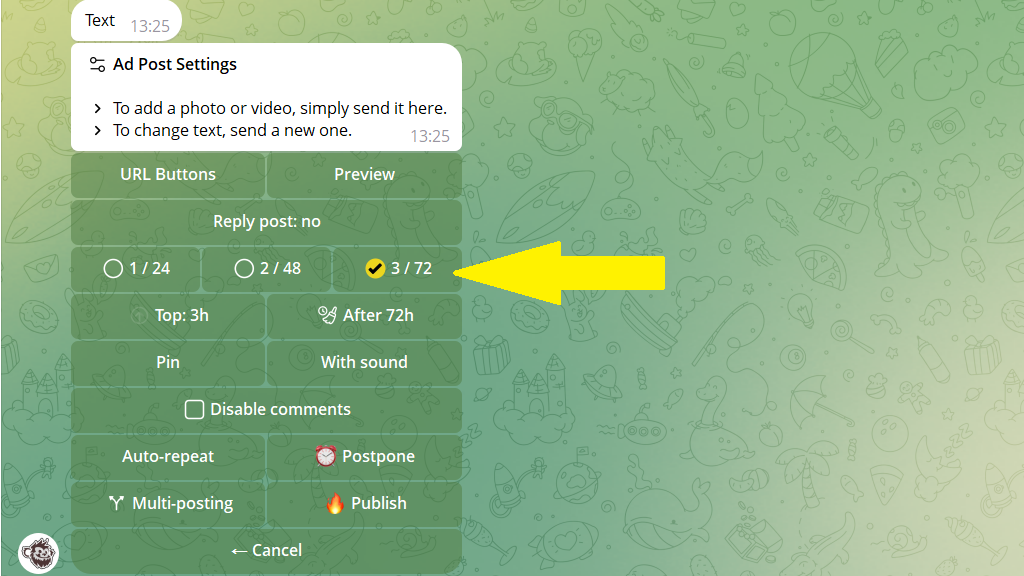
If you use a non-standard format, set the time at the top and the auto-delete timer by hand.
Take note of Keep on Top — an exclusive feature that won't let anything push the ad down while it's at the top.
4. Publish or schedule the ad post.
Note: in the Settings section, you can set up a schedule for the channel's ad posts in advance, so you can quickly pick the slot you need later.
Saving settings
Below the report on the ad post, tap Save ad settings — they'll apply to ad posts only.
