
In a perfect world, the advertiser sends both the creative and the payment right away. In reality, unfortunately, it's often:
- The payment is in, but the creative won't arrive until the day before publishing
- The creative is ready and the time is agreed, but the payment hasn't come through yet
So you don't have to keep track of booked slots on a piece of paper, the bot provides an effective system for reserving ad slots.
A reservation:
- appears in the content plan
- blocks the slot in the calendar
- won't go out without confirmation
Creating a new reservation
- Tap
Ad postin the bottom menu. - Choose a channel.
- Then tap
New reservation.
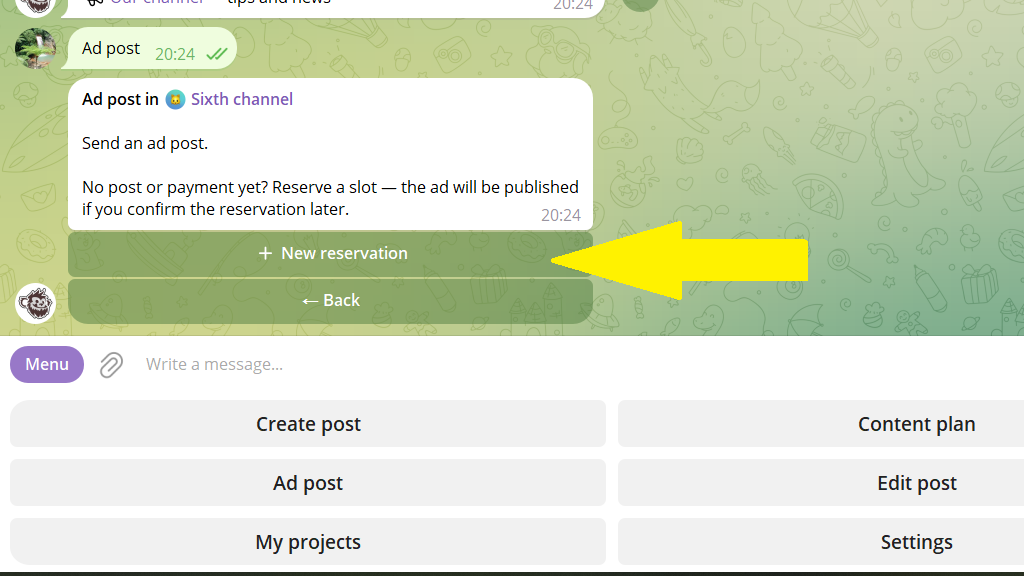
4. Send the bot the ad post. If you don't have it yet, send a name for the reservation — it could be the advertiser's name or the channel's name.
5. Set the publishing options and the time it goes out.
That's it! The ad slot is reserved. The reservation appears in the content plan alongside regular posts and category posts.
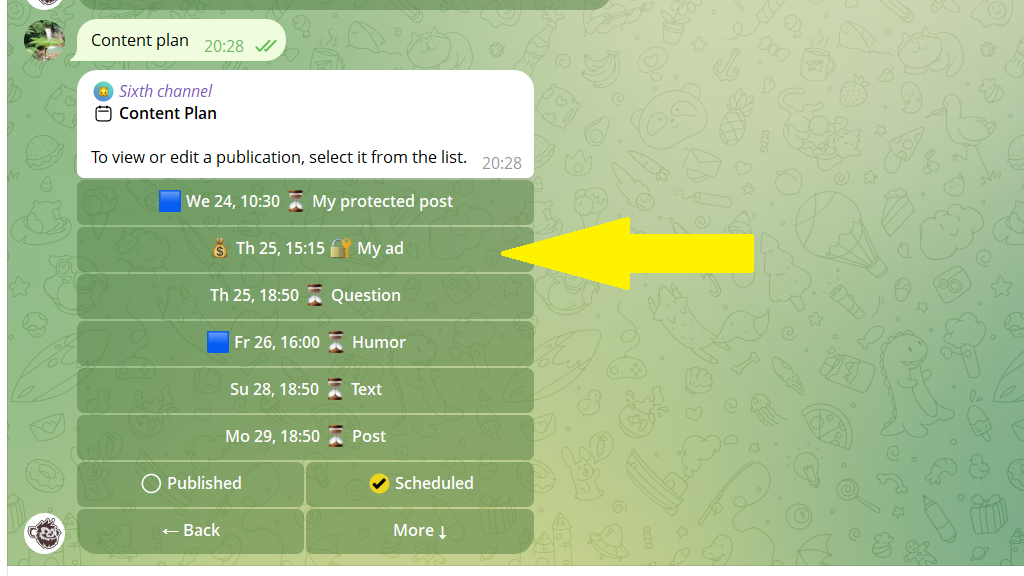
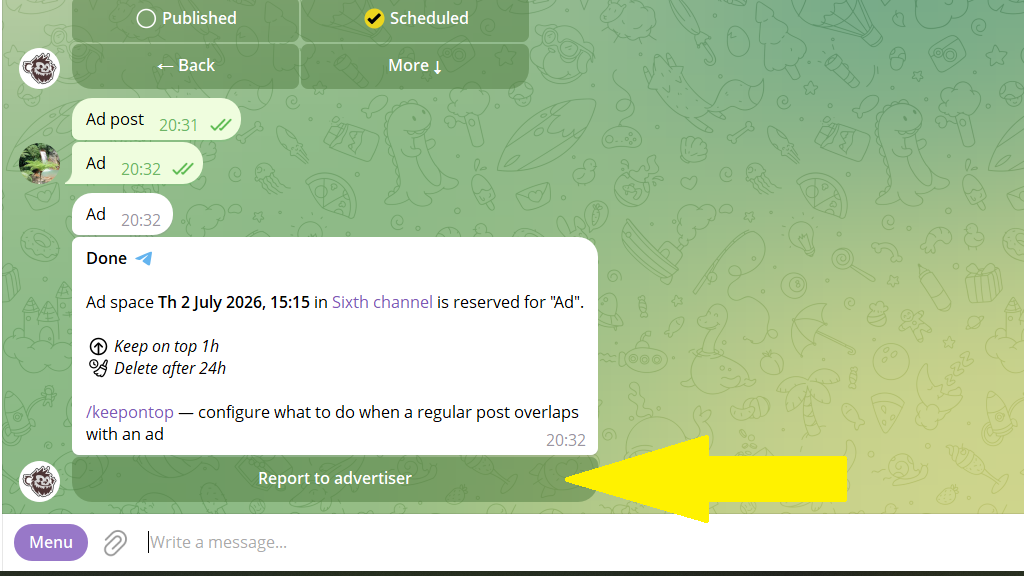
If you'd like, you can send the advertiser a report about the reservation you created.
Confirming a reservation
- Tap
Ad postin the bottom menu. - Specify the channel where the reservation was created.
- Choose the reservation you need from the list.
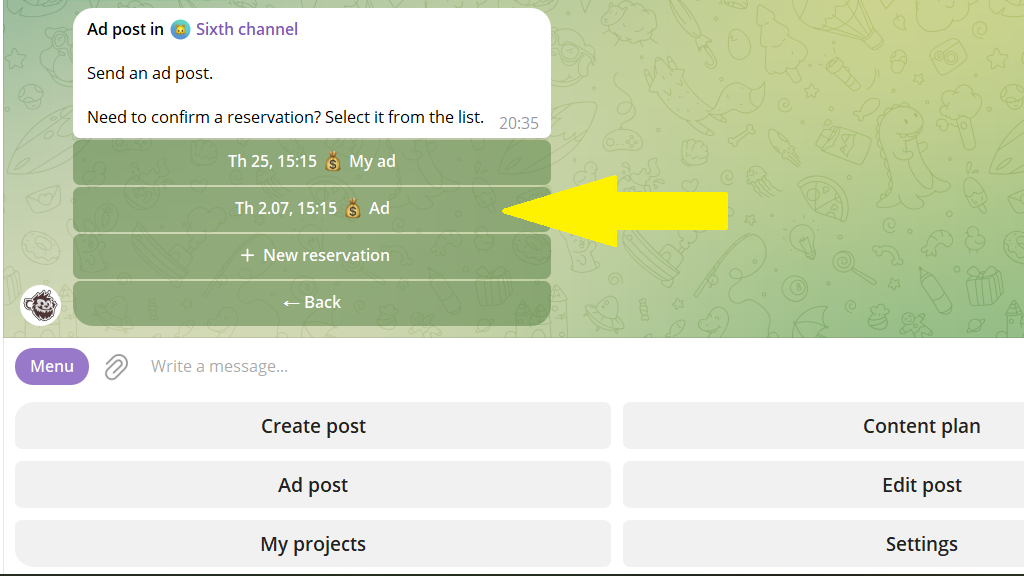
4. Send the bot the ad creative. If you uploaded it when creating the reservation, just tap Continue. Then confirm publication.
How to delete a reservation
If the client cancels the reservation, you can delete it through the content plan, just like a regular post. Once the reservation is deleted, the slot in the ad schedule is freed up.
