
A template is a ready-made preset for posts, with all the formatting and schedule settings. Choose a template, send your content, and the signature and buttons are already added, the watermark applied, and every setting in place. All that's left is to publish.
Templates are useful where regular default settings aren't enough. With them, you can:
- Copy posts to several channels, replacing buttons, signatures, and more
- Post to categories on a separate schedule
- Use Auto-replacement to change pieces of text or remove the standard signature from ad posts
- Change text automatically with AI
- Turn on Turbo mode and schedule a hundred posts without a single click
How to create a template
1. Tap Settings in the bottom menu or send /settings.
2. Choose New template.
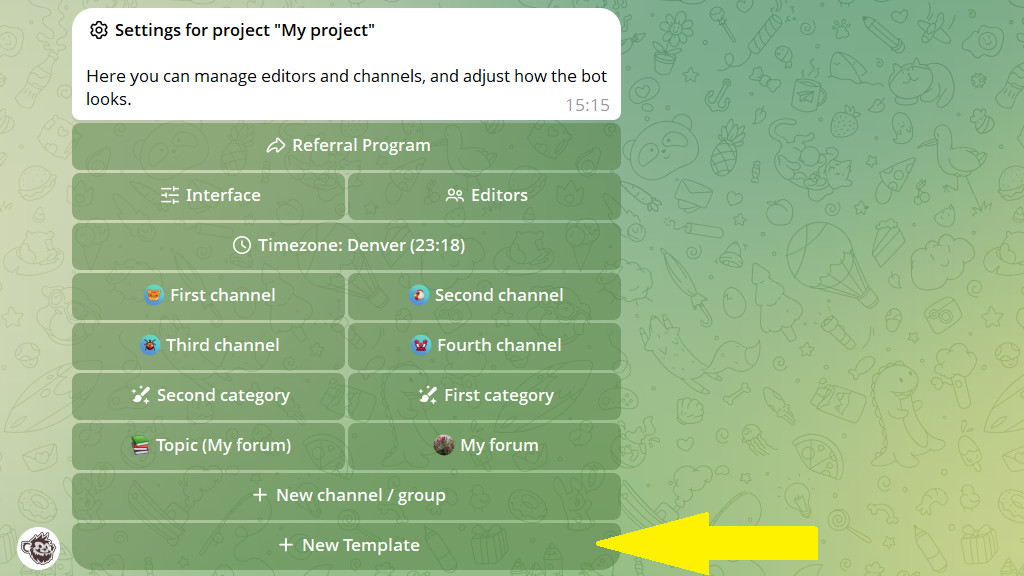
3. Specify the channel for the template.
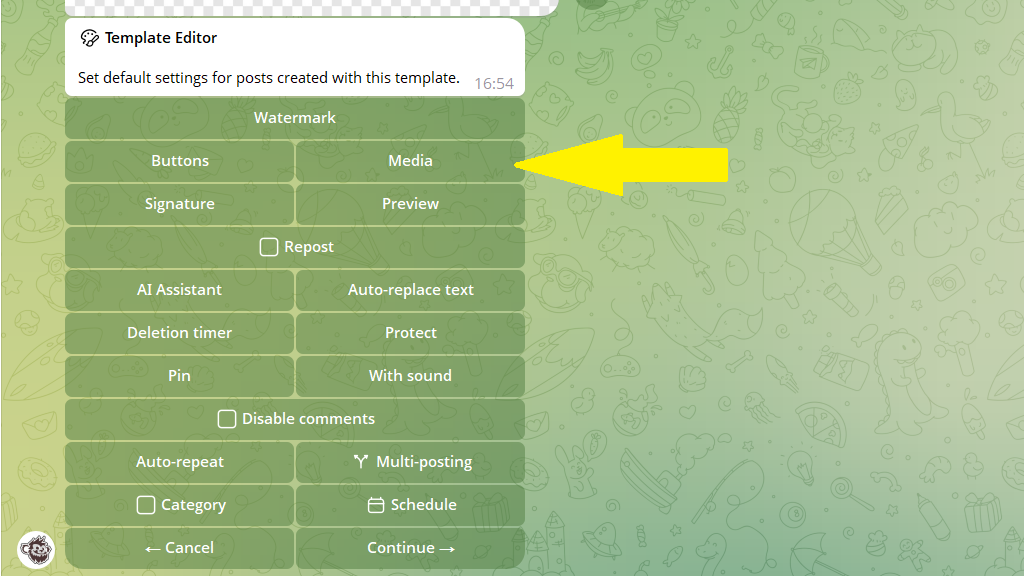
In the template editor, set up:
- Formatting options (signature, watermark)
- Prompts for the AI Assistant
- Auto-replace text
- Publishing settings (auto-delete timer, pinning)
- The schedule for posts to go out
- Enter text in the template if you want the same text to accompany every media file.
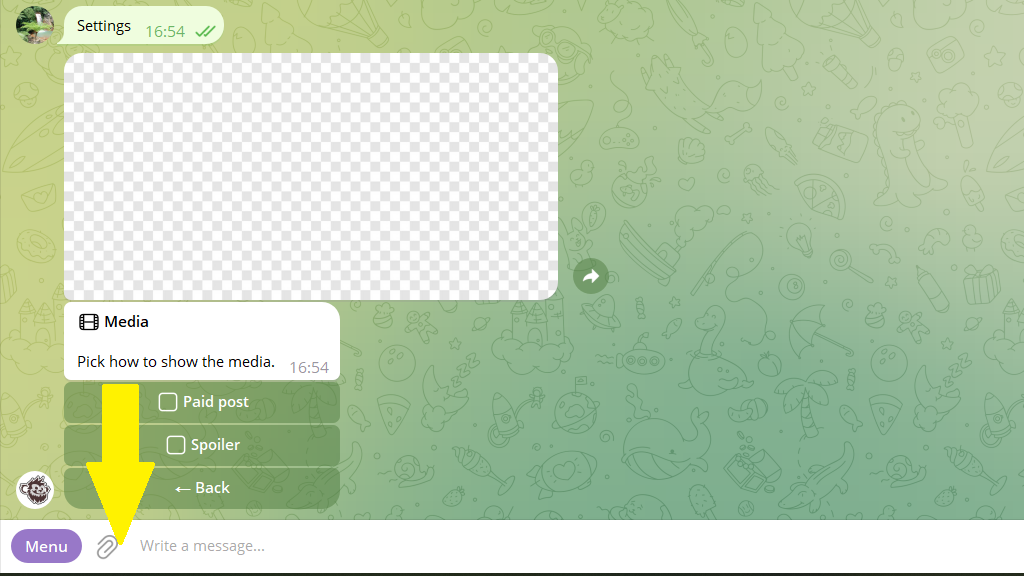
- Attach media if you want the same media added automatically to text posts. To do this, go to the
Mediasection, then send the media you need to the bot using the paperclip icon.
4. Tap Save and give the template a name.
You can create an unlimited number of templates.
How to use a template
Using a template is very simple:
- In the
Create postmenu, choose the template. - Send the bot your content.
- Tap
PublishorPostpone.
That's it! The content is published with the settings from the template.
You can edit, rename, or delete templates via the Settings → Templates menu.
