
One click — and a post is scheduled across all your channels at once, each on its own schedule. Sounds like magic? It's really just a template, set up in a few minutes.
Creating a template
- Tap
Settingsin the bottom menu or send the/settingscommand. - Choose
New templateand specify the channel to publish to. - Tap
Schedule→Add slots.
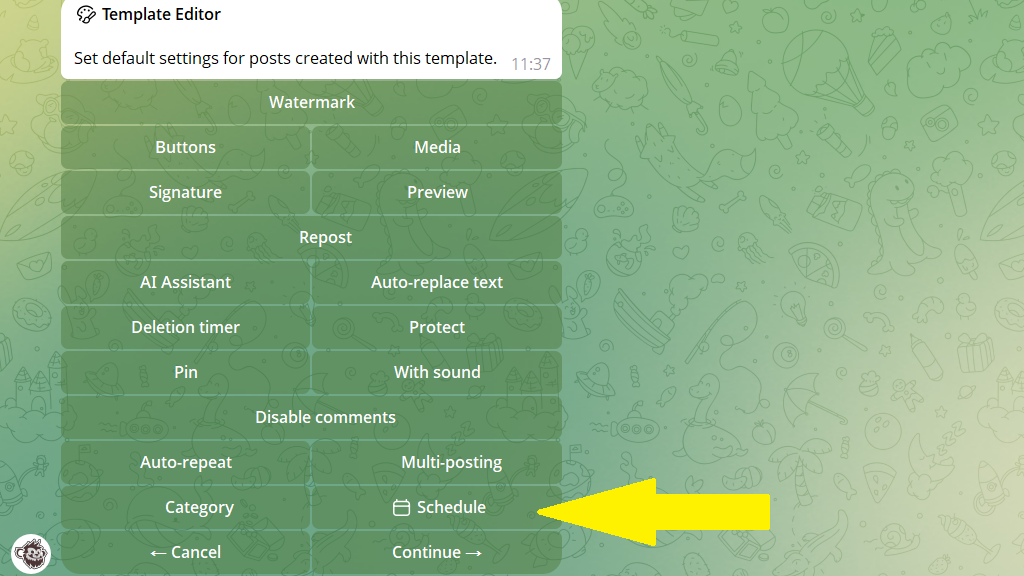
4. Send the bot the times posts should go out in the main channel.
If a schedule is already set up, you can adjust it via Schedule.
Now set the times for the additional channels
5. Tap Multi-posting and choose the channels you need.
6. Then tap Back → Edit for other channels.
7. The second channel's settings open. Turn on the Different schedule checkbox.
- If no schedule is set yet, send the bot the slots.
- If you need to change it, tap
Manage slots.
Then switch to the next channel in the bottom menu bar. When all the channels are set up, tap Back to main channel and save the template.
How to post with a template
All the templates you create appear in the general list alongside your connected channels.
- In the post editor, choose the template you need.
- Send the bot your content.
- Tap
Postponeand choose a slot for the main channel. In the additional channels, the post will take the nearest free slot.
