
Turbo mode lets you publish posts automatically without any extra steps. Turn it on, forward posts from another channel or your Saved Messages, and the bot will apply the formatting and publish them immediately or by schedule.
In Turbo mode, the default settings are applied to every post automatically, including buttons, the automatic signature, watermark, and other options.
How to turn on Turbo mode
1. Tap Create post or send /newpost.
2. Turn on Turbo mode.
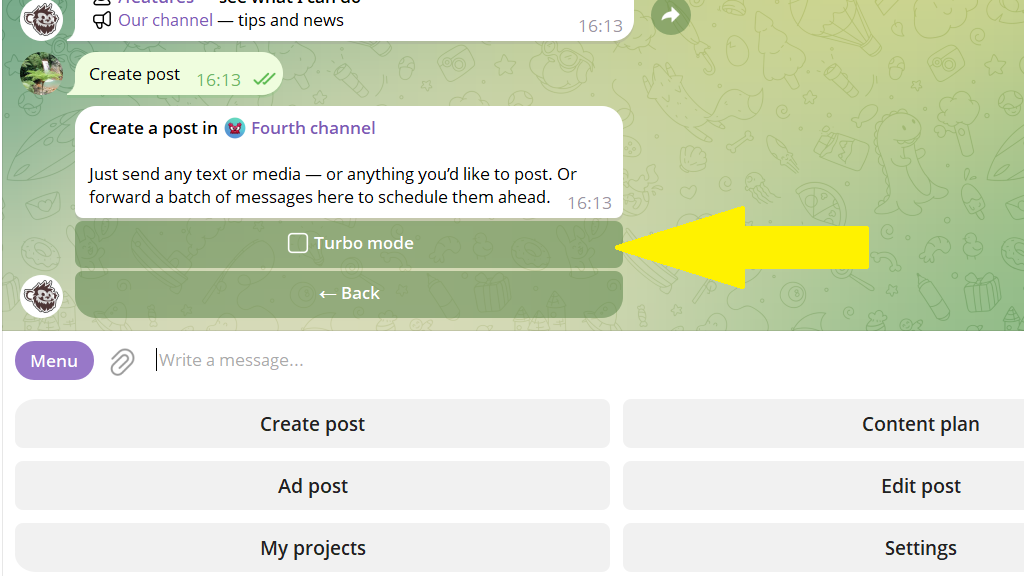
3. Choose one of the two publishing modes: Publish immediately or By schedule.
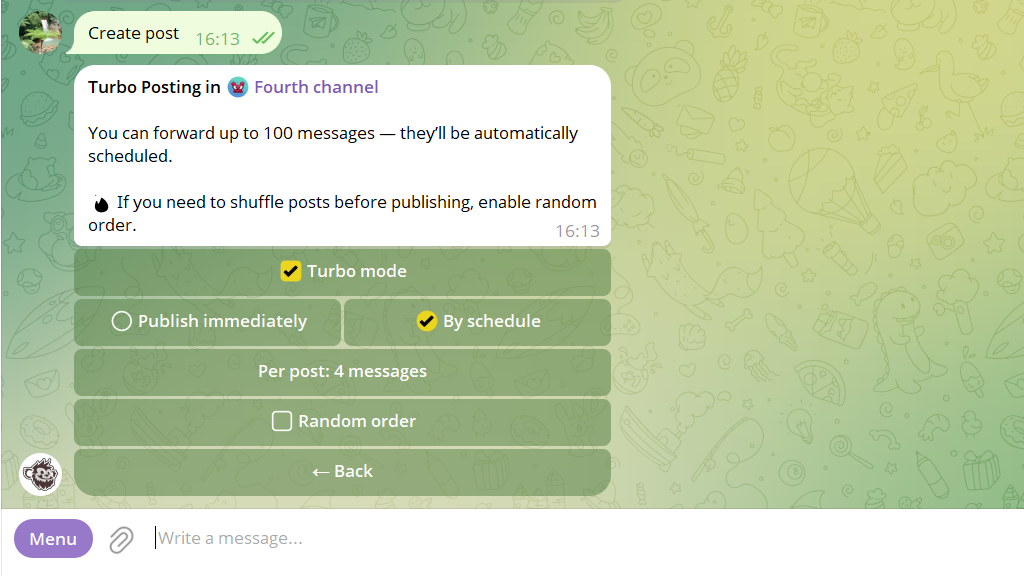
Publish immediately: one or more posts forwarded to the bot are published right away with your saved settings.By schedule: posts are automatically assigned to the next available schedule slots with your saved settings.
Turbo posting by category
Create several templates for recurring content categories, one for each category. When you turn on Turbo mode, the bot will ask you to choose a category.
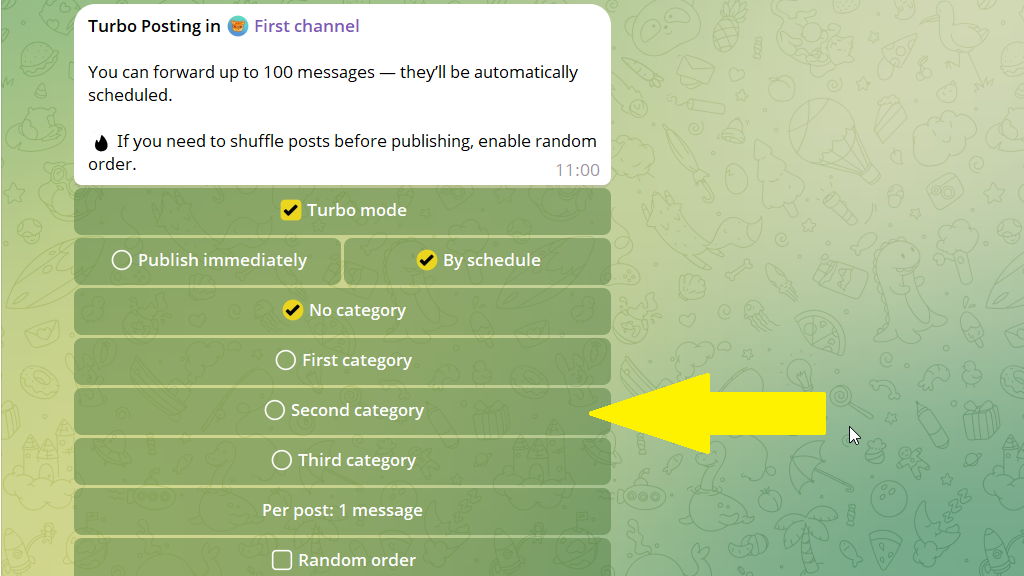
Choose the category, open the channel where you keep your drafts, and forward the posts to the bot. They will be assigned automatically to the next available slots in that category's schedule.
Turbo mode features
Individual settings for each channel
If copying to multiple channels is enabled in the default settings, the bot will prepare a separate version of the post for each channel.
For example, if you send the bot 10 posts:
- the posts in each channel will follow that channel's own schedule;
- each channel will use its own buttons, automatic signature, and watermark;
- ChatGPT will translate or rewrite the text separately for each channel if enabled in the settings.
Publishing in random order
After turning on Turbo mode, you can select Random order. The bot will then assign posts to schedule slots at random.
This is useful when you publish similar content across multiple channels. Different publishing times, post order, and formatting help avoid an identical sequence of posts.
Publishing multiple messages in one slot
Turbo mode can publish between 1 and 10 messages at a time. Select the number of messages you need:
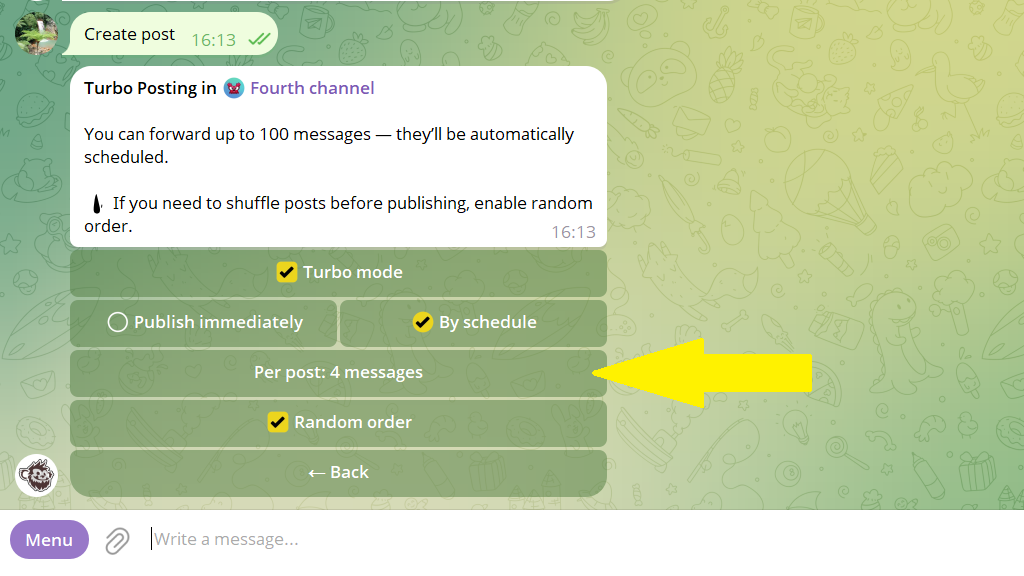
For example, if you select 4 messages per post and send the bot 20 messages, it will distribute them across five schedule slots. Each slot will contain four messages.
