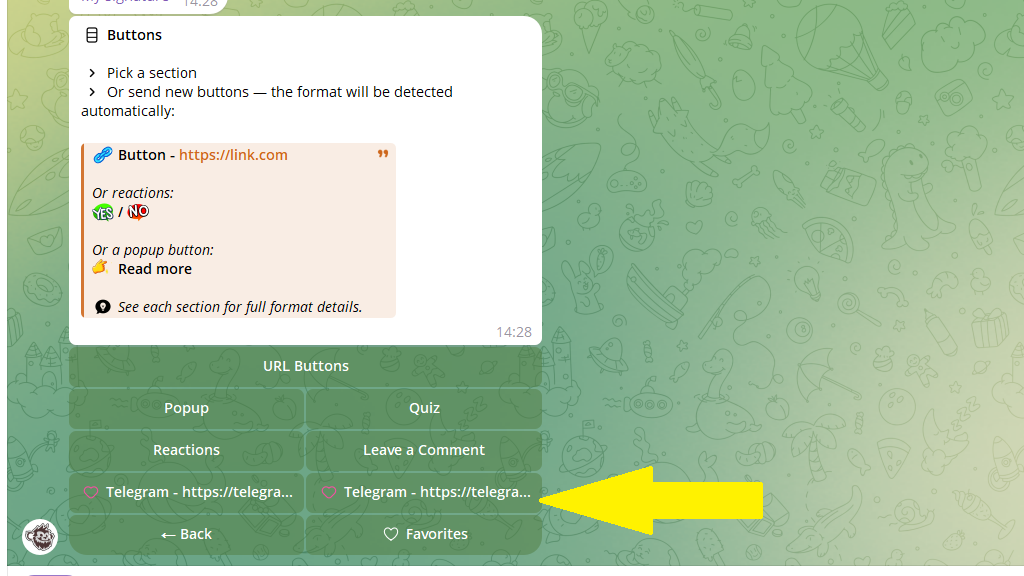
Posto offers different kinds of buttons for a post:
- URL button
- hidden-continuation button
- quiz button
- comment button
- reaction buttons
How to add a button to a post
1. Go to the post editor.
2. Tap Buttons.
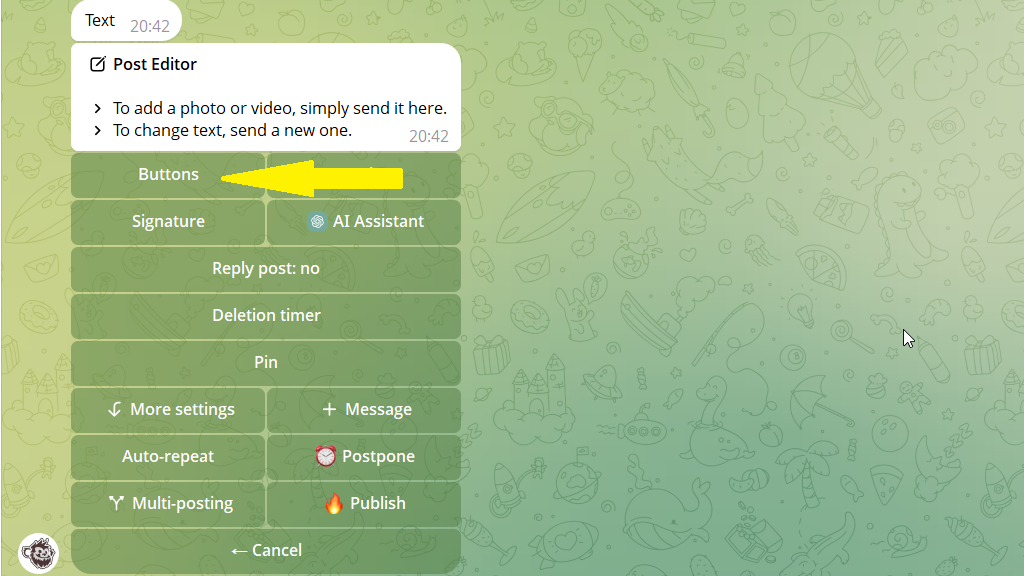
3. Choose which button you want to place under the post.
URL buttons
These are buttons that open a website, channel, chat, or other external address. The user sees clean text on the button instead of bulky, ugly links. This boosts the click rate, because the call to action looks clear and professional.
If you need a button like this, choose URL buttons.
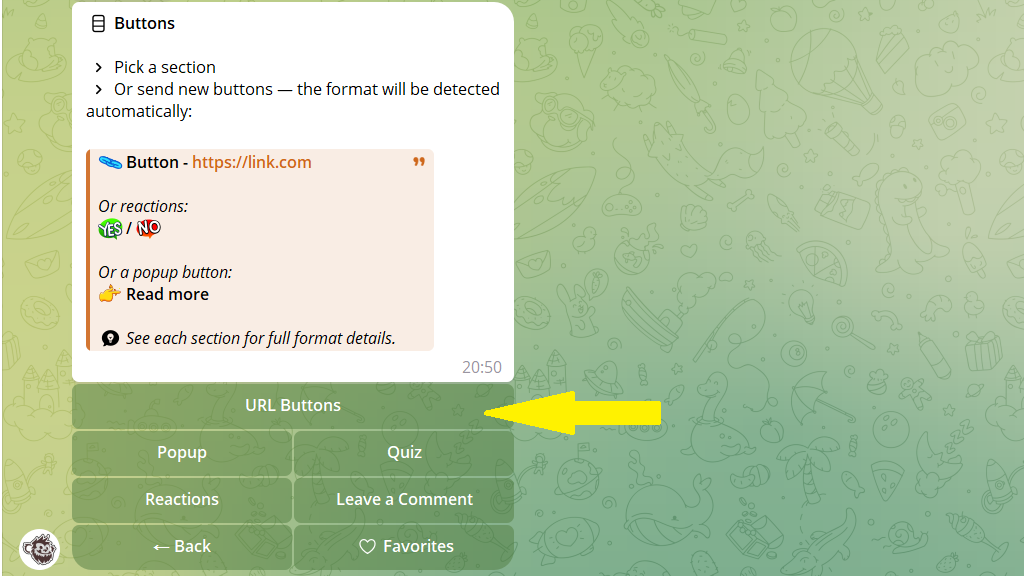
Send the button name (the text shown on it) and the address (the link to the resource that will open for the user). For example:
Telegram - https://telegram.org
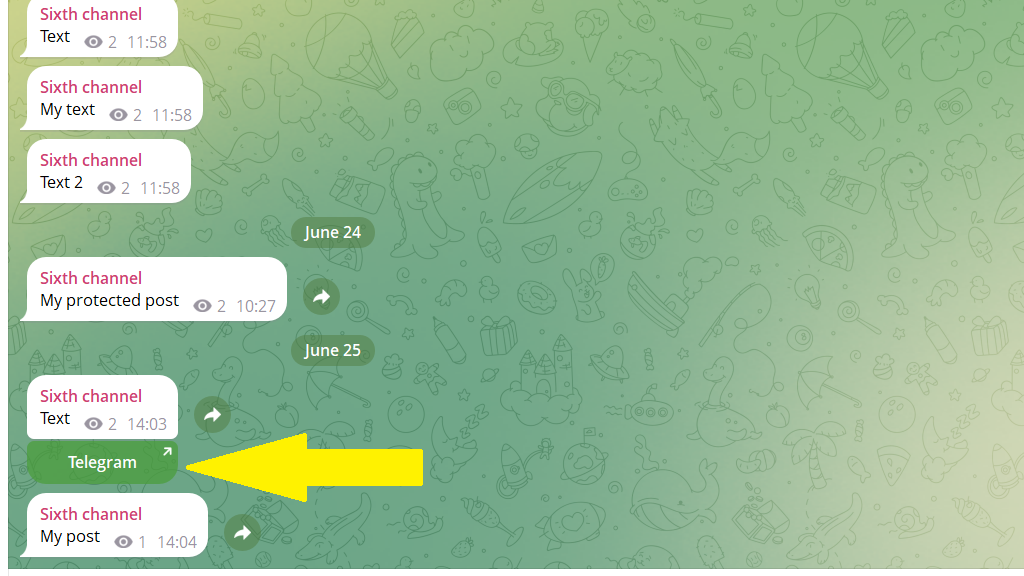
In that case the button will read "Telegram", and tapping it will take the user to the website you specified. If you pick green for the button, it will look like this in the finished post:
Reaction buttons
These are emoji or short text on buttons under a post. You can use them to run simple polls:
yes / no
like / dislike
To add reaction buttons under a post, tap Reactions.
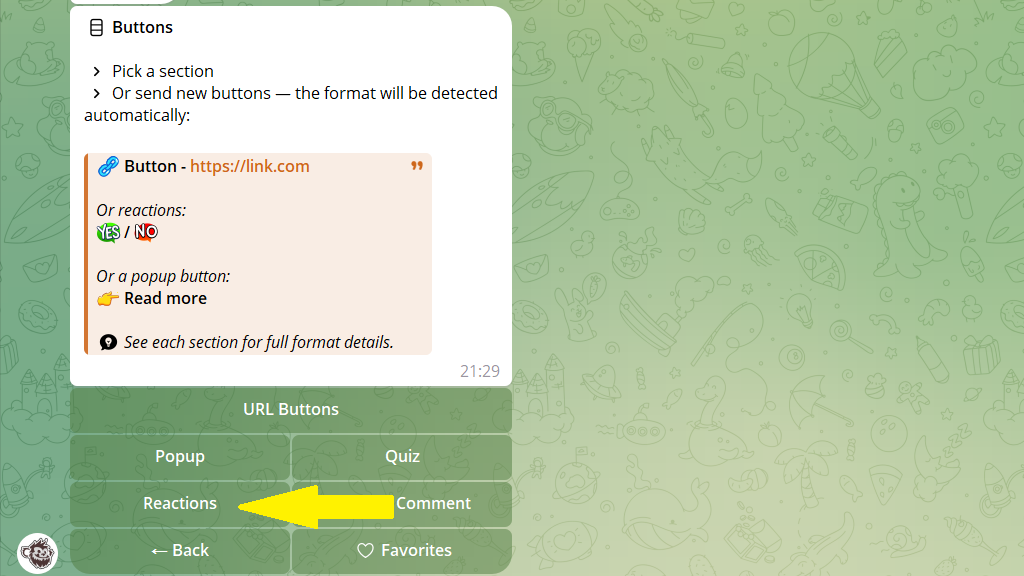
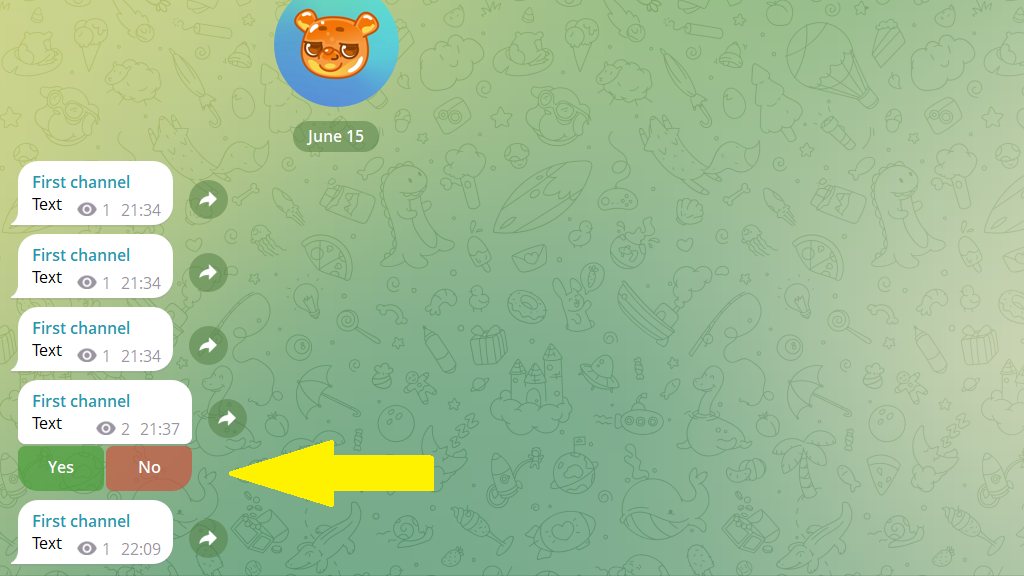
Choose the reactions you need from the table or send your own. In the finished post they'll look like this:
Comment button
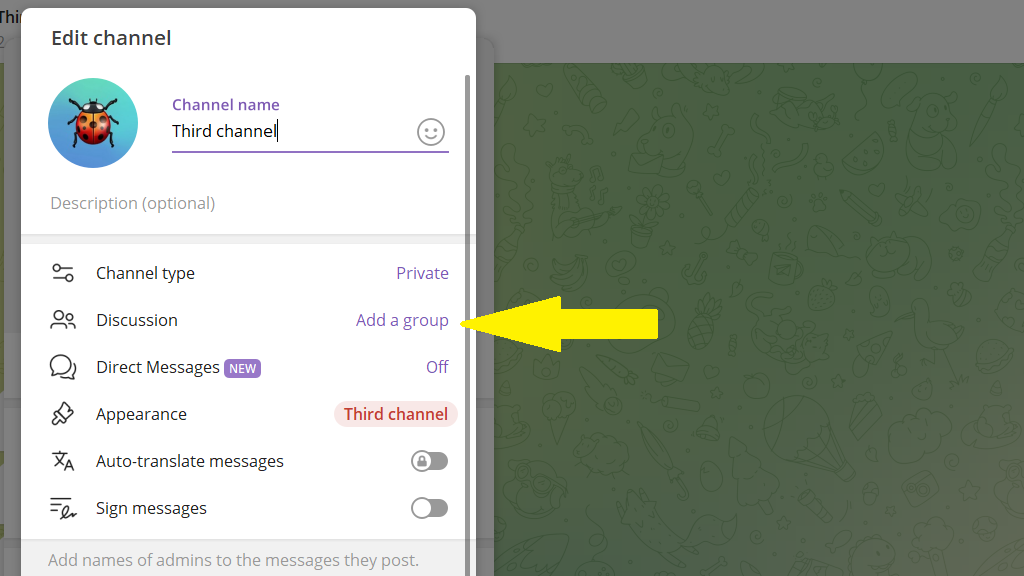
Comments in a Telegram channel are available if a discussion group is linked to that channel. To link one, open your channel settings and tap Discussion.
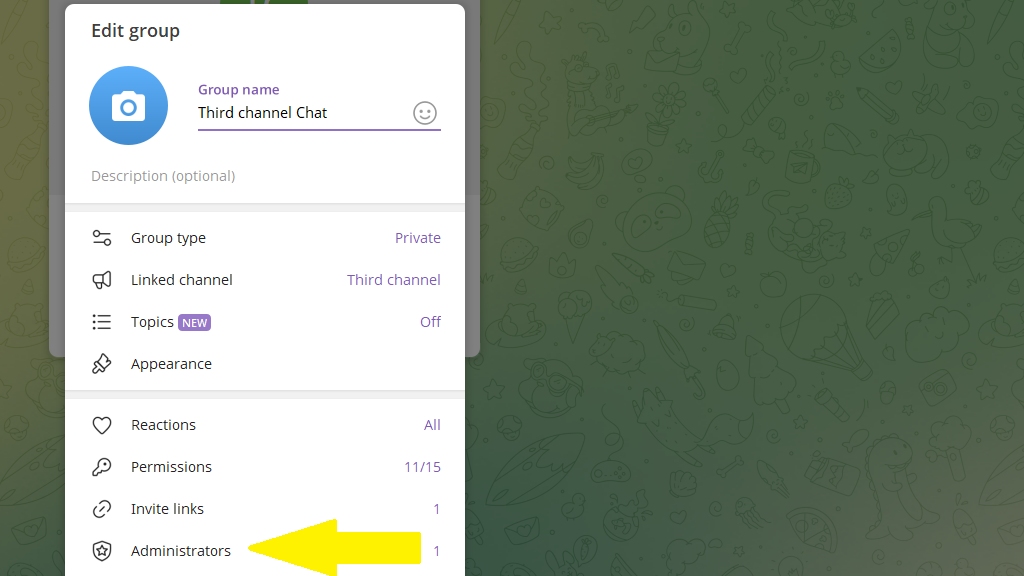
Then open the settings of the group you added and make Posto an admin.
Now a prompt to add a comment appears under every post in your channel. Instead of the standard comment link, you can place a Leave a Comment button under the post. To do this, in the buttons section tap Leave a Comment:
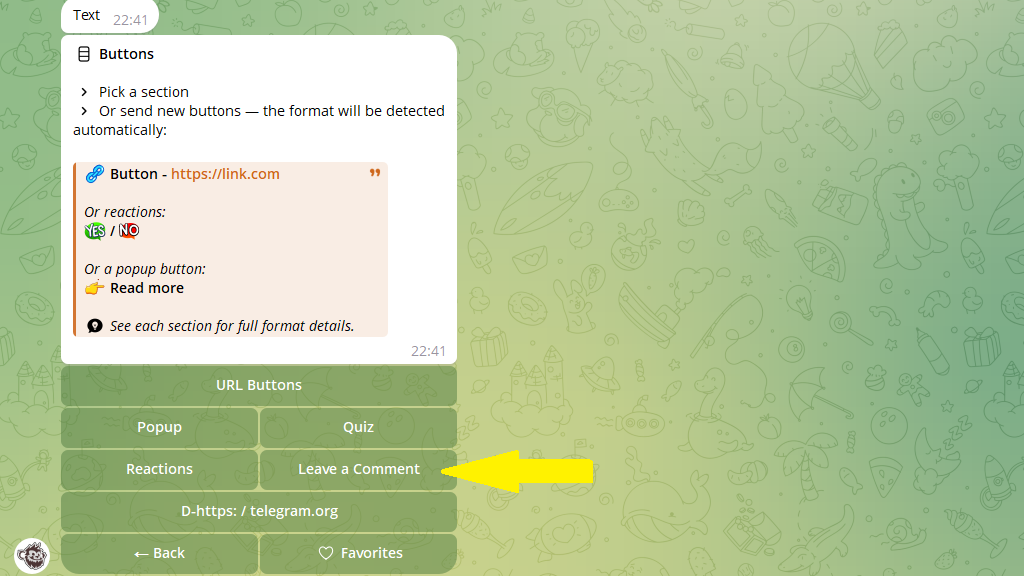
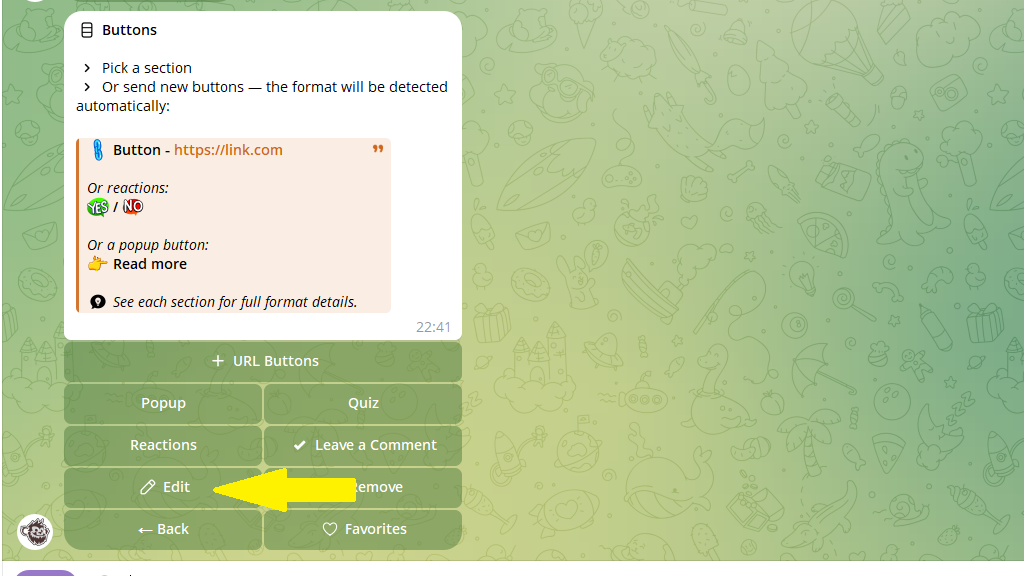
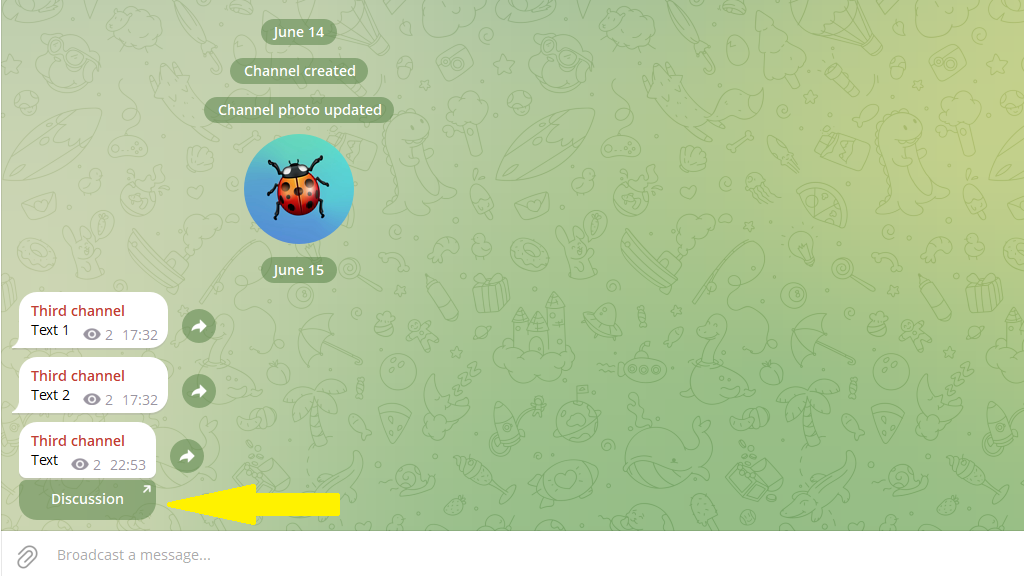
The text on this button can be anything. For example, you might want it to read "Discussion". To do this, tap Edit and change the name.
In the end, the button under the post will look like this:
Hidden continuation
This is a way to encourage someone to subscribe to your channel. You publish the post only partially, with its ending hidden behind a button. If a person is subscribed, they tap the button and immediately see the rest of the post. If they're not, they see an invitation to subscribe.
To create a hidden-continuation button, go to that section.
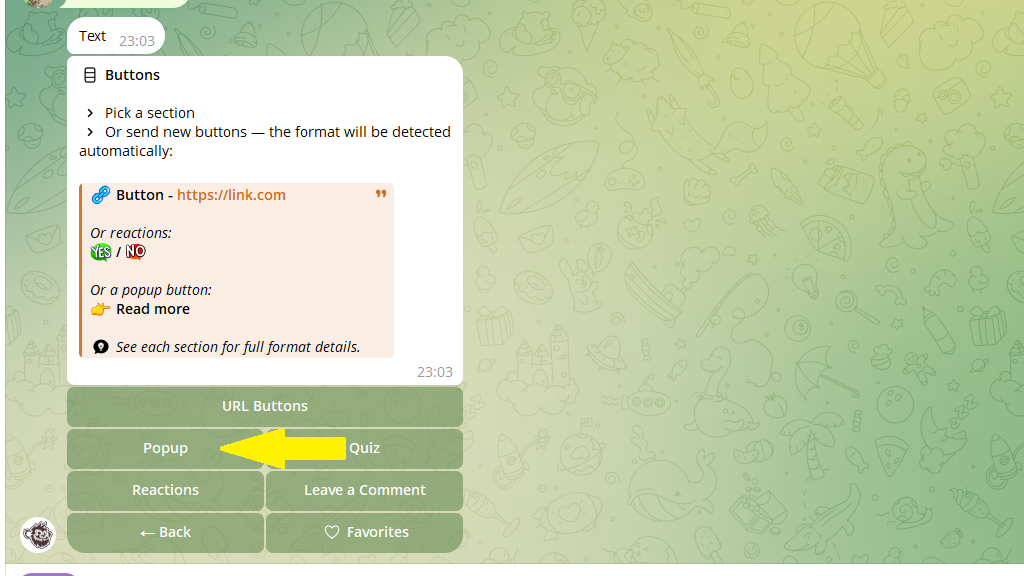
Send the text that will appear on the button.
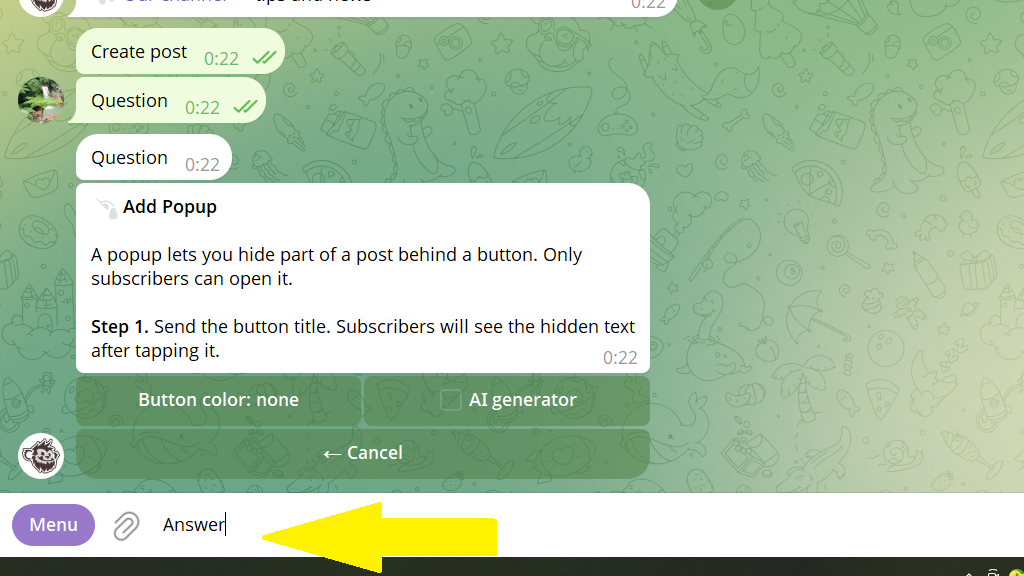
Then the bot will ask you to send the text for subscribers and the text for those who aren't subscribed. In the end, the button under the post will look like this:
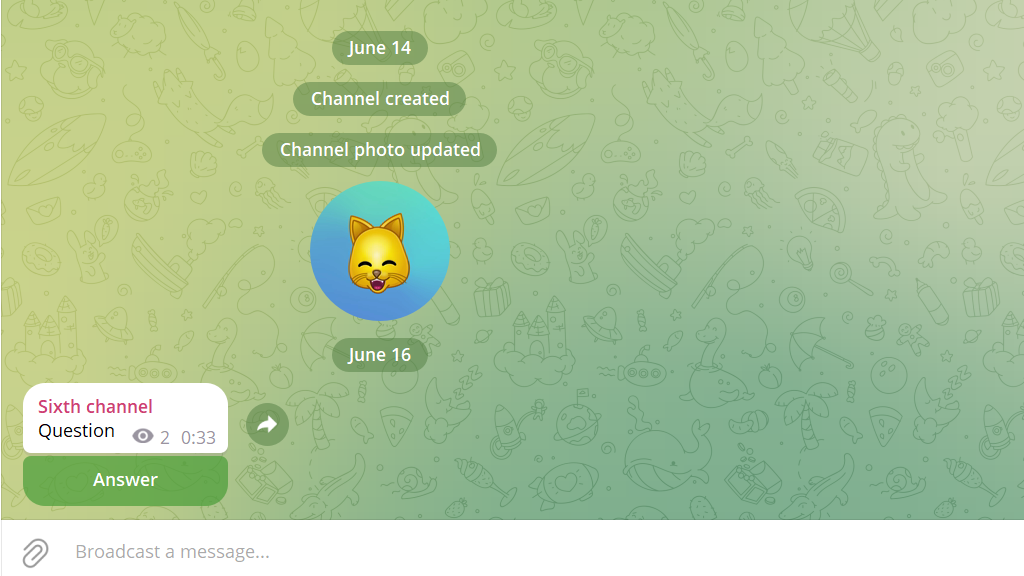
When a subscriber taps it, they'll see the rest of the post. If a person isn't subscribed, they'll see an invitation to subscribe to the channel.
Quiz
A quiz is a hidden continuation with several answer options. It's a clever way to interest people who aren't subscribed to your channel and get them to subscribe.
Include a question or riddle in your post with an intriguing image, and give several answer options. Each option is a separate button. When someone taps a button, they find out whether they were right, and see how many other users chose the same answer.
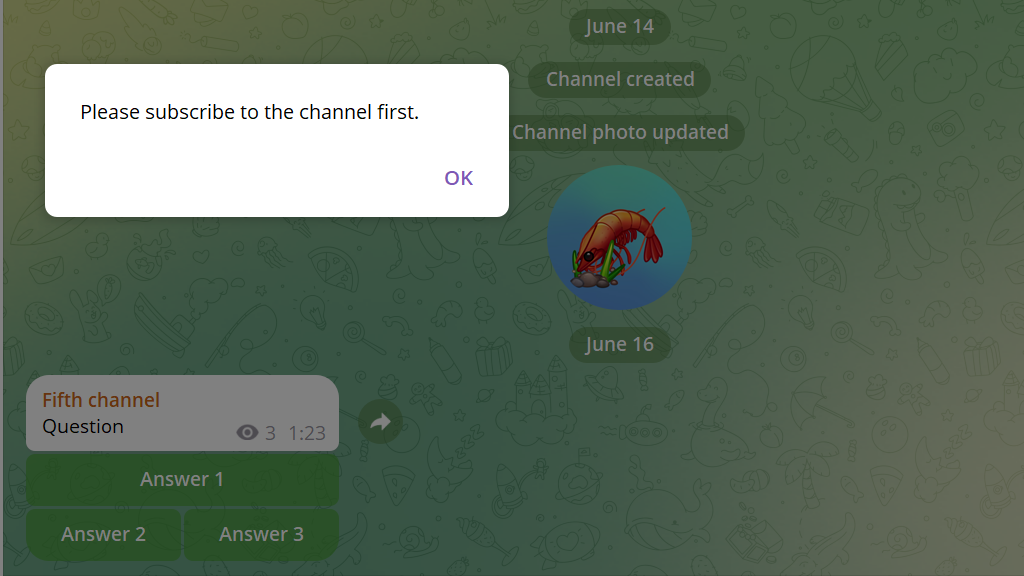
If a user isn't subscribed to the channel, they see an invitation to subscribe in order to find out the correct answer.
Favorite buttons
If you periodically add a particular button or set of buttons to your posts, you can save them to Favorites. To do this:
- Add the button (or buttons) you need to the post.
- Tap
Favorites.
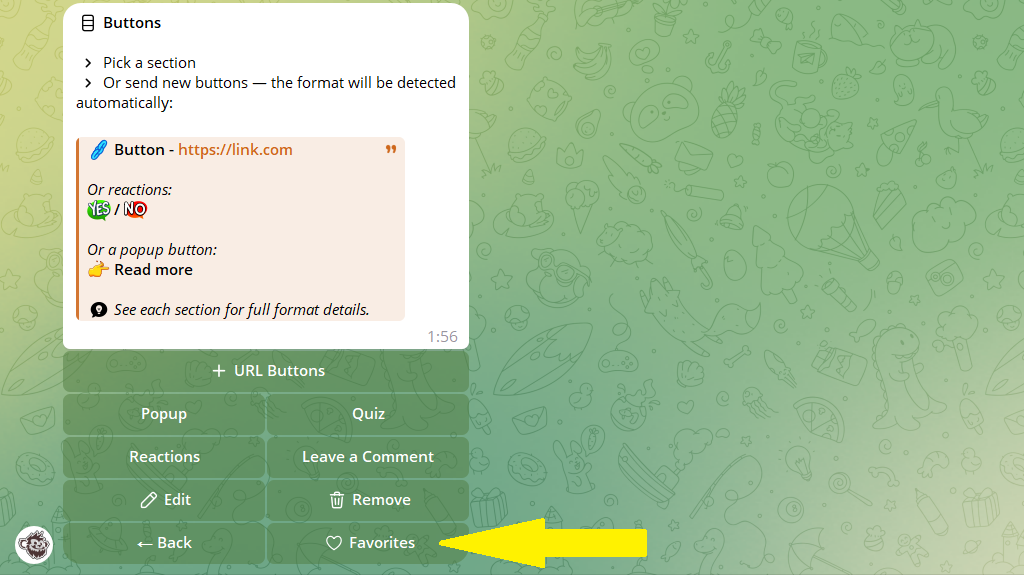
3. Tap Save buttons from this post.
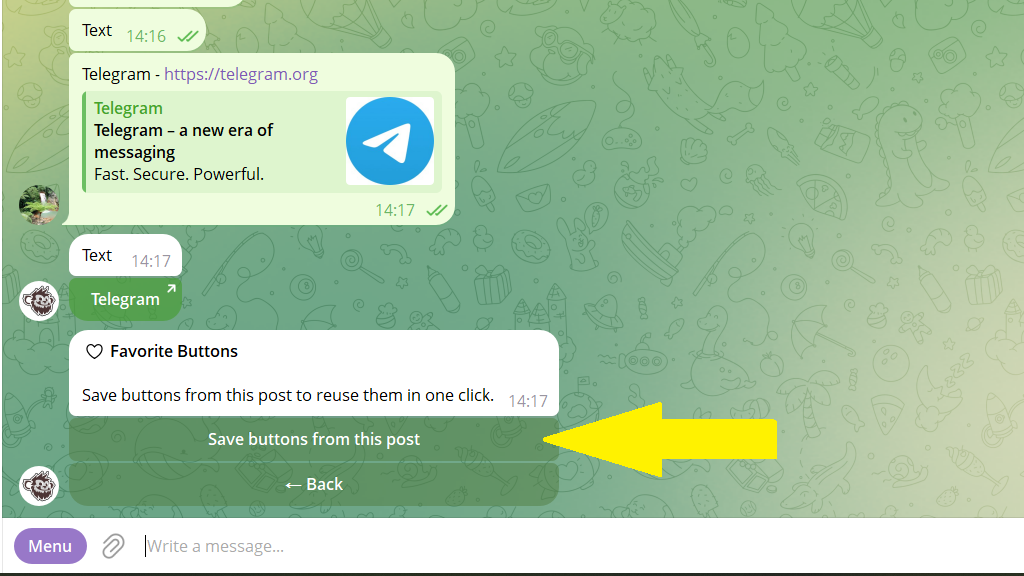
Next time, the buttons section will show a list of the ones you saved, so you can add the one you need in a single tap.