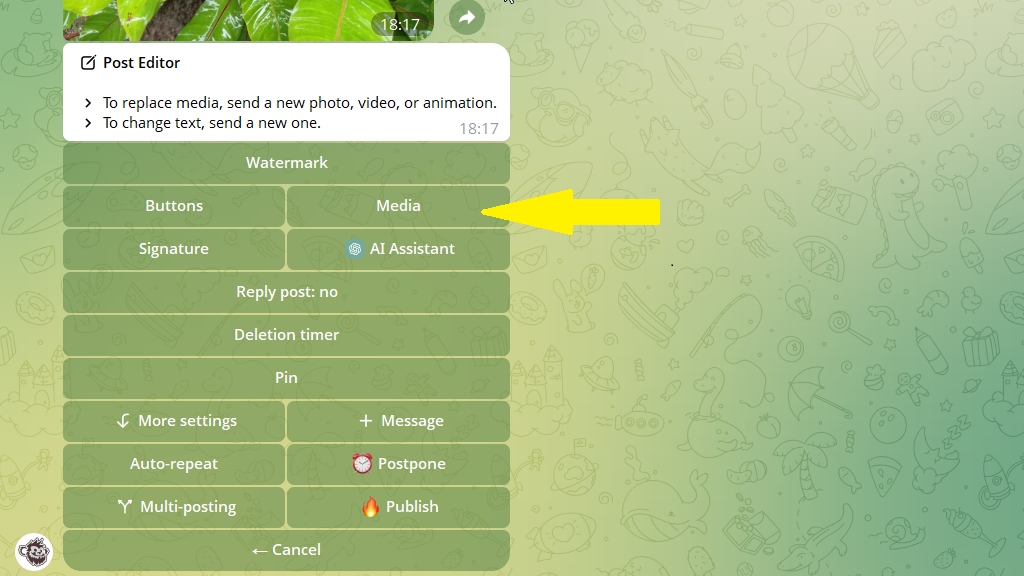
If a photo or video is attached to a post, a "Media" button appears in the editor. This section lets you set up how the media file will appear in the post.
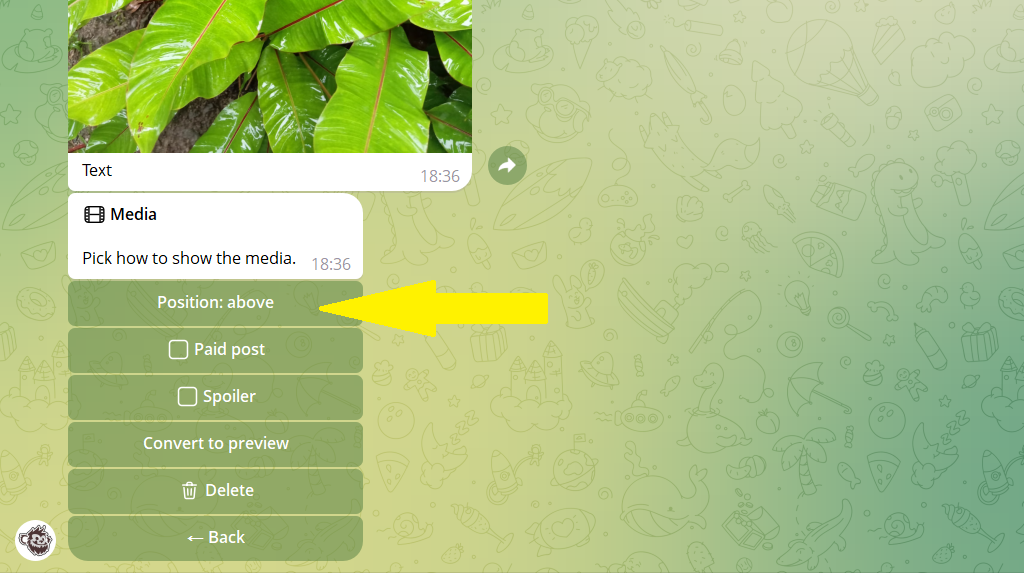
After you tap Media, the bot offers several options:
- position
- paid post
- spoiler
- convert to preview
Position
The Position button changes where the media file sits in the post. You can place the photo or video above the text or below it.
Paid post
A paid post unlocks the photo or video only after payment. The subscriber sees a blurred image and a price in stars. After paying, they get access to the full media file.
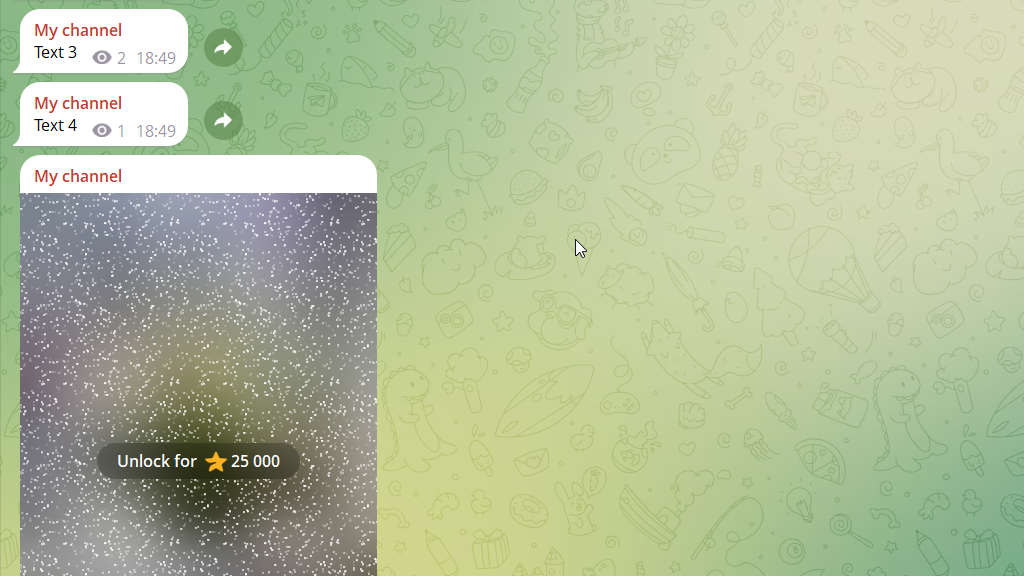
To charge for viewing, tap Paid post in the Media section and set the price. The available range is 1 to 25,000 stars.
Spoiler
A spoiler hides a photo or video behind a blur. The media opens when the subscriber taps it.
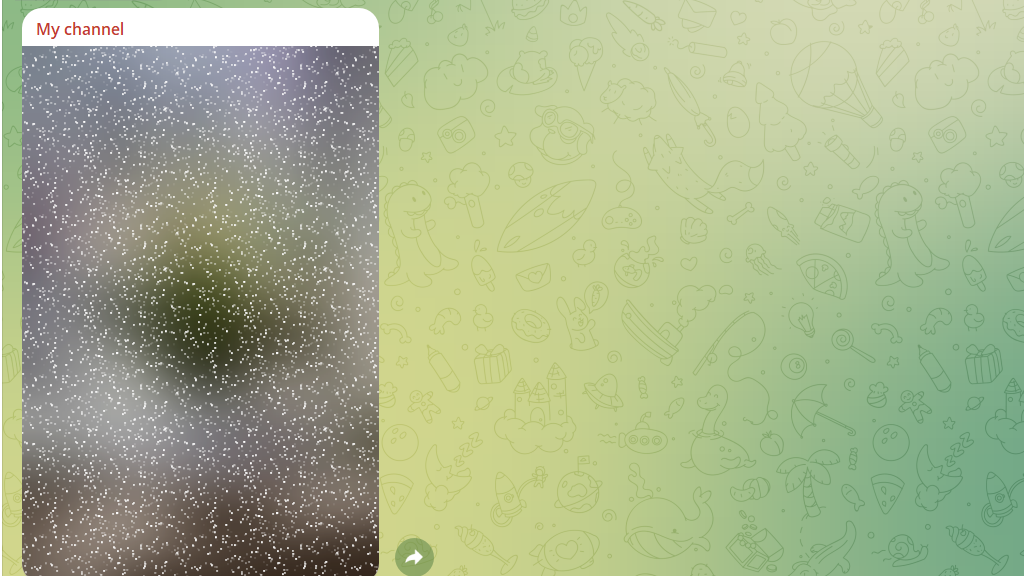
A spoiler is handy when you need to hide sensitive content or draw attention to a post. For example, news channels can hide images that might shock the audience.
To turn on a spoiler, tap Spoiler in the Media section.
Convert to preview
The Convert to preview button changes the post format to text with a media preview.