
You can edit an article (Rich Message) in the same way as a regular post. For a scheduled article, you can replace all of its content. Some restrictions apply after publication.
How to edit a scheduled article
1. Open the post editing menu from Edit post or Content plan.
2. Change the required settings, such as the publication time or deletion timer.
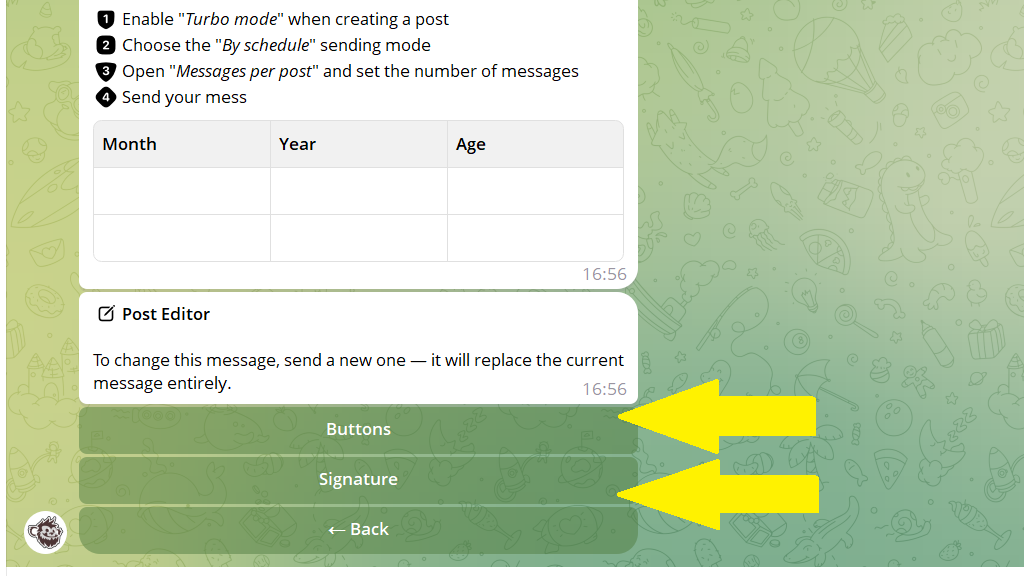
3. Tap Edit content to change the buttons, signature, or post content.
To replace the content, send the bot a new article, new text, or media.
4. Save your changes.
How to edit a published article
1. Open the post editing menu from Edit post or Content plan.
2. In the settings menu, you can change the deletion timer or publish the same post again.
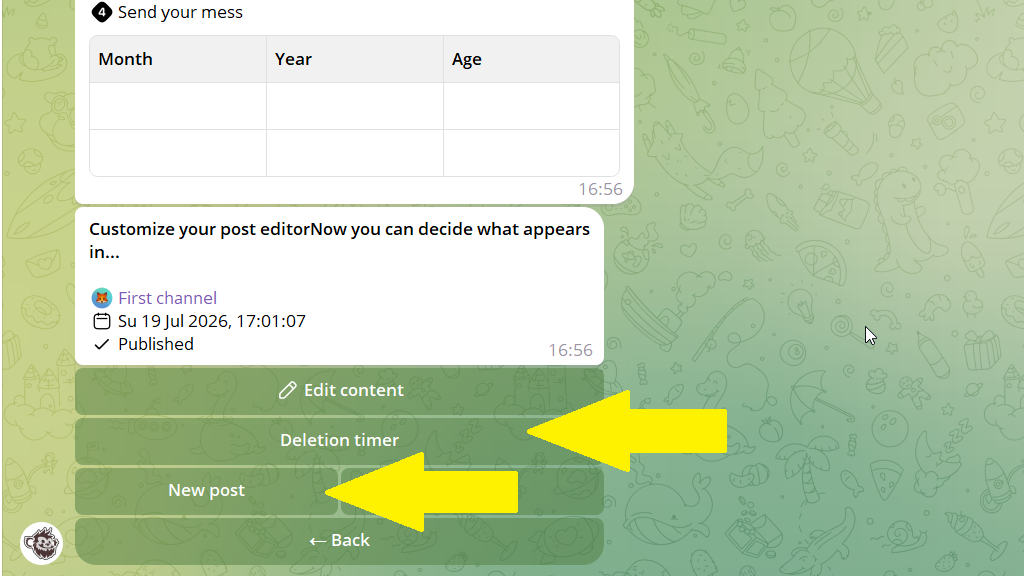
3. Tap Edit content to change the buttons, signature, or post content.
You can replace a published article with a new article or regular text. You cannot replace it with media or a post containing both text and media.
How to replace a regular post with an article
In a published post, you can replace only a text message or another article with an article (Rich Message). You cannot replace published media or a post containing both text and media with an article.
Scheduled posts do not have these restrictions. An article can replace any message type:
- a text post;
- a media file;
- text with media;
- another article.
To do this, open the post editing menu, send the bot an article, and save your changes.
