
Make sure the person has activated @posto. If not, they need to open t.me/posto and tap Start.
The username above is for the premium Posto bot. If you have your own scheduler bot, the new team member should activate that one, not the premium bot.
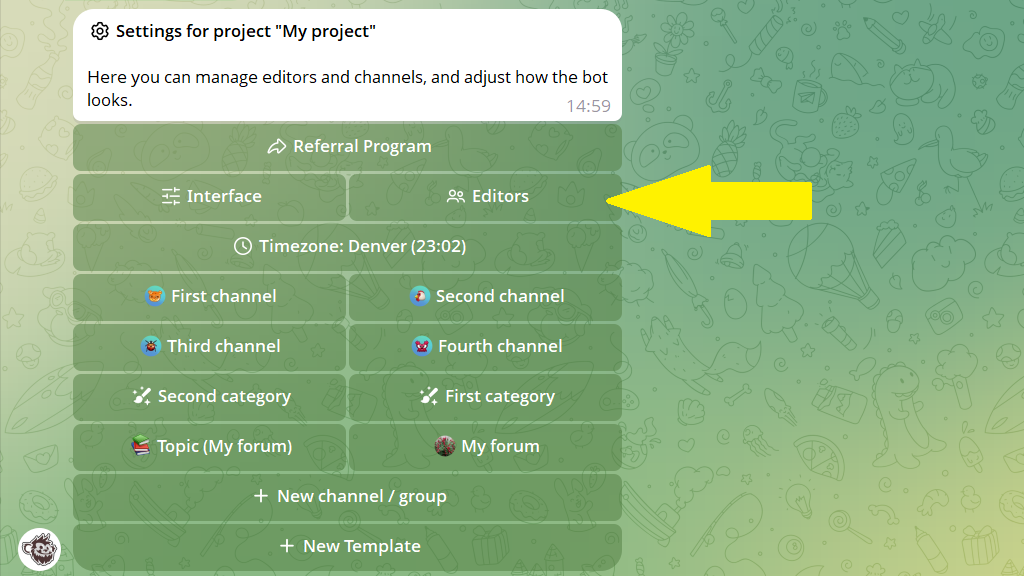
1. In the bot, open the Settings → Editors menu and tap New editor.
2. In the bottom menu, tap Select users — your contact list opens. You can choose up to 10 people at a time.
3. Once all the users are added, tap Return to editors list.
When you add a new editor, your project appears in their My projects menu or in the /projects command.
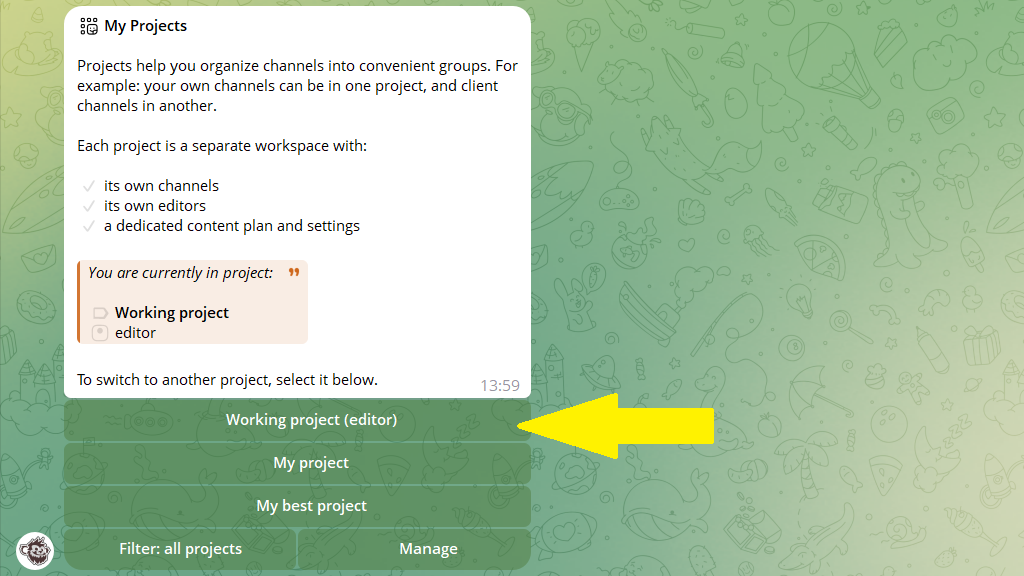
❗️Take note! Every newly added editor automatically gets these permissions:
- Create, edit, and delete posts — the basic posting permissions.
- Manage posting — save default settings, manage templates and folders, change schedule slots, and other options that affect the other editors.
If you don't want to trust a new editor with the right to manage posting, turn it off.
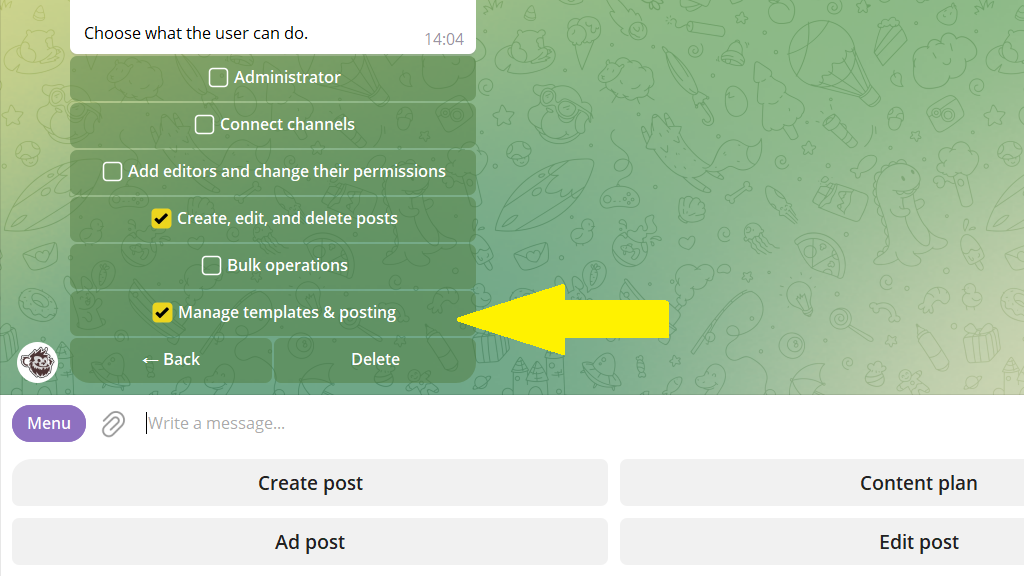
Likewise, users usually have post permissions turned off if that's not part of their job. For example, an accountant only needs permission to pay for the subscription.
Which permissions you can set
Administrator — all permissions except deleting the project and assigning administrators.
Pay for subscription — change the plan and pay for channel subscriptions.
Connect channels — add channels to the project.
Create, edit, and delete posts — the basic posting permissions.
Manage posting — manage settings, folders, the schedule, and other options that affect all the project's editors.
Bulk operations — edit or delete several posts at once, bulk replace the signature or a link.
Manage editors — add users and change their permissions (you can't grant more permissions than you have yourself).
How to set permissions for a team member
- After you've added a new team member, tap
Return to editors list. - Go to the editor's profile.
- Set the permissions you need.
